The television remote disappears between sofa cushions just when a movie is about to begin. At other times, a family photo, presentation or mobile video needs a larger screen, but no cable is available. Most modern smart TVs can connect to a smartphone wirelessly within a few minutes.
The right method depends on the task. Casting sends a video or song from an app to the TV. Screen mirroring copies everything visible on the phone. A virtual remote lets the smartphone control menus, volume and typing. Knowing the difference prevents many connection problems.
Check Compatibility Before Starting
Confirm which wireless system the television supports. Android TV and Google TV models commonly include Google Cast. Samsung televisions may support Smart View or SmartThings. Many recent TVs also work with Apple AirPlay. Brand-specific apps are available for selected LG, Sony, Xiaomi and other models.
Connect the smartphone and television to the same Wi-Fi network. This is essential for most casting, mirroring and remote-control features. Turn on Wi-Fi and Bluetooth, update the TV software, and install pending phone updates.
Avoid a guest network because some routers prevent connected devices from detecting one another. Keeping both devices on the same network name also simplifies pairing.
Cast Videos from Android Apps
Casting is usually the best choice for Netflix, YouTube, Prime Video, Spotify and other supported apps. The television plays the content directly, so the phone can still be used for other tasks.
Open the required app and start a video or song. Tap the Cast icon, which normally looks like a small screen with wireless lines. Select the television from the available devices. A code or permission message may appear during the first connection.
Once connected, use the phone to control playback, volume and content selection. To disconnect, tap the Cast icon again and choose Stop Casting or Disconnect.
Mirror an Android Smartphone Screen
Screen mirroring is useful for photos, presentations, websites and apps without a Cast button. Swipe down to open Quick Settings and look for Cast, Screen Cast, Wireless Display, Smart View or Screen Mirroring.
Tap the option, choose the television and accept the request shown on the TV. The complete phone screen should appear within a few seconds.
Private notifications can appear on the television, so activate Do Not Disturb before showing content to a group. Mirroring may also create a slight delay, making it less suitable for fast games.
Connect an iPhone Through AirPlay
An iPhone can stream content to an Apple TV or AirPlay-compatible smart TV. Ensure both devices use the same Wi-Fi network.
To share a video or photograph, open the content, tap Share or the AirPlay icon, and select the TV. Enter the passcode displayed on the television if requested.
For full-screen mirroring, open Control Centre, tap Screen Mirroring and select the TV. Return to the same menu and choose Stop Mirroring when finished. Some streaming services restrict mirroring, so use the app’s built-in AirPlay option when available.
Use the Smartphone as a TV Remote
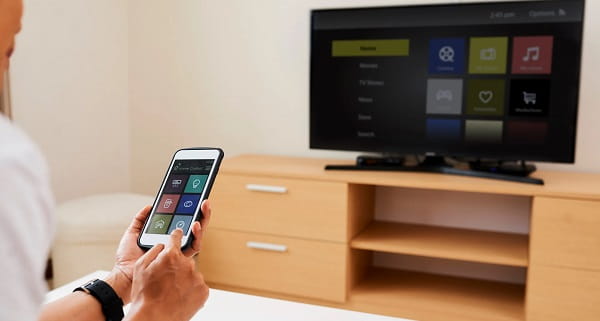
For Google TV or Android TV, open the Google TV app and choose the remote or nearby-TV option. Select the television, enter the pairing code shown on screen and complete the connection.
Samsung users can add a compatible TV through SmartThings. Other manufacturers may provide their own official remote apps.
A phone remote is convenient for entering passwords or searching long titles. However, it may not switch on every television when the TV is completely disconnected from the network.
Fix Common Connection Problems
Restart the phone, television and Wi-Fi router when the TV does not appear. Confirm that screen mirroring, AirPlay or Google Cast is enabled in the TV settings. Temporarily disable a VPN because it can prevent device discovery.
Remove an old pairing and reconnect if the session repeatedly fails. An older television without wireless casting can gain this feature through a compatible HDMI streaming device.
FAQs
Q: Can I connect my phone to a smart TV without Wi-Fi?
A: Some devices support direct connections or mobile hotspots, but compatibility varies. A shared home Wi-Fi network is generally the simplest method.
Q: Why does my smart TV not appear on the phone?
A: The devices may be on different networks, casting may be disabled, or the TV software may be outdated. Restart both devices and check permissions.
Q: Does screen mirroring use mobile data?
A: Mirroring itself usually uses the local Wi-Fi network. Streaming content may still consume internet data through the phone or television.
Q: Is it safe to connect a smartphone to a hotel television?
A: Use caution on shared networks. Avoid showing passwords, banking apps or private notifications, and remove the television from paired devices before leaving.