A smart bulb should make life easier: lights that switch off from bed, schedules that run automatically and brightness that changes from a phone. Yet setup can become frustrating when the bulb keeps blinking, the app cannot find it or the Wi-Fi password is rejected.
Most connection failures come from a few ordinary issues—an unsupported network band, incorrect pairing mode, weak signal or missing app permissions. Follow the steps in order instead of repeatedly resetting everything.
Confirm What Type of Smart Bulb You Have
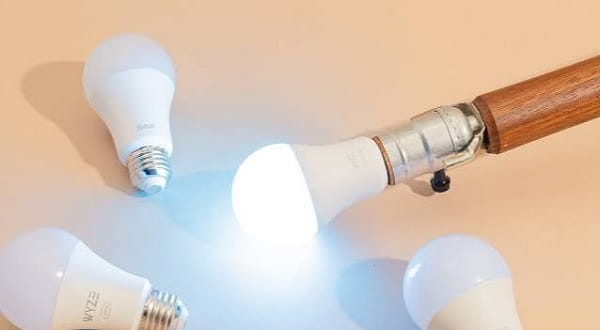
Read the label, box or manual. Some bulbs connect directly to Wi-Fi, while others use Bluetooth, a bridge, hub or Matter.
A hub-based bulb must normally be added to its manufacturer’s bridge first. A Matter-enabled model may include a QR code or pairing number for Google Home, Apple Home, Alexa or another compatible platform. Keep the setup card until installation is complete.
Also confirm that the bulb matches your holder and voltage. Do not use an ordinary smart bulb with a traditional wall dimmer unless the manufacturer permits it.
Prepare the Wi-Fi Network
Many smart bulbs use 2.4GHz Wi-Fi because it reaches farther through walls. Connect the phone to the network recommended by the bulb maker.
If the router combines 2.4GHz and 5GHz under one name, setup may work normally. When it does not, temporarily separate the bands or move the phone and bulb closer to the router.
Turn off mobile data and VPN services if discovery fails. Guest networks and device-isolation settings can also prevent the phone, bulb and smart-home hub from communicating.
Install the Bulb and Keep Power Available
Switch off the light, allow the old bulb to cool and fit the smart bulb without overtightening it. Restore power and keep the wall switch on. A Wi-Fi bulb cannot receive app or voice commands when its electricity supply is cut.
Place the bulb within a strong router signal during setup. It can be moved to another room later if required.
Use the Official Manufacturer App
Download the app named on the packaging or manufacturer’s website. Avoid unofficial APK files and similarly named apps.
Create an account if required and allow Bluetooth, local-network or nearby-device permissions during setup. Select Add Device or Lighting, choose the correct bulb type and enter the Wi-Fi password carefully.
Put the Bulb Into Pairing Mode
A new bulb may blink automatically. If it remains steady, follow the model-specific reset procedure. Many bulbs enter pairing mode after the wall switch is turned on and off in a particular sequence, but the timing differs between brands.
Do not guess repeatedly. Follow the manual until the bulb flashes in the expected pattern. Some products offer both fast-blinking and access-point modes; the app may suggest the second option when normal pairing fails.
Link It to Your Smart-Home Platform
Complete setup in the manufacturer app first unless the bulb supports direct Matter or seamless pairing.
Then open Google Home, Alexa or Apple Home and choose Add Device, Link Service or Scan Matter Code. Sign in to the bulb account when requested.
Assign the light to the correct room and give it a simple name such as “reading lamp” or “balcony light.” Avoid nearly identical device names because voice assistants may control the wrong bulb.
Fix a Bulb That Will Not Connect
Restart the bulb, phone and router. Confirm the password, Wi-Fi band and signal strength. Remove incomplete device entries from both apps before retrying.
If the bulb was connected to another household, perform its official factory reset. When several smart devices go offline together, check whether the router password, 2.4GHz network or security settings recently changed.
Secure the Bulb After Setup
Install firmware updates through the official app. Use a strong account password and enable two-step verification when offered.
Use household access features instead of sharing the primary login. Remove the bulb from your account and reset it before selling or giving it away.
FAQs
Q: Why does my smart bulb work with Bluetooth but not Wi-Fi?
A: It may require a bridge, use another network band or be blocked by weak signal or router-isolation settings.
Q: Can I connect a smart bulb through a mobile hotspot?
A: Some models may connect, but setup can be unreliable when the same phone provides the hotspot and runs the app. A home router is preferable.
Q: Why does the bulb appear offline after I use the wall switch?
A: The switch removes power from the bulb, so its wireless radio cannot respond. Keep the switch on for smart control.
Q: Do I need a smart speaker?
A: No. Most Wi-Fi bulbs work through their phone app. A compatible smart speaker only adds voice control.