A software-update notification is easy to postpone. The phone is working, the battery is low, and restarting during the day feels inconvenient. Then a banking app stops opening, the device begins restarting or an important security warning appears.
This is when many users search for a way to “force” the update. A safe forced update means manually checking for an officially released package or using the manufacturer’s approved computer software when the normal wireless method fails. It should never mean installing random firmware from an unknown website.
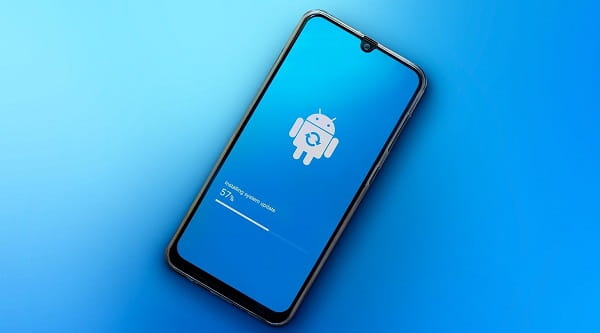
Install Manually When a Security Update Is Waiting
Security patches repair weaknesses that attackers may use to access data, accounts or device functions. If your phone has received an official security update but automatic installation keeps postponing it, a manual update is sensible.
Open the software-update section and check the security patch date. Android menu names vary, but the option is usually under Settings, System or About Phone. Samsung devices commonly place it under Settings > Software Update > Download and Install. On an iPhone, open Settings > General > Software Update.
Install important security updates promptly when the phone contains UPI apps, work email, saved passwords or personal documents.
Update When Essential Apps Need Newer Software
Banking, payment, office and authentication apps gradually stop supporting older operating-system versions. An application may display a warning, lose features or refuse to open.
Check whether an official system update is available before replacing the phone. It may restore compatibility and provide newer security protections. Do not download modified financial apps to avoid an operating-system requirement. Such files may expose login or payment details.
Use a Manual Update When the Download Is Stuck
A phone may show “download pending,” fail during verification or return to the same screen after restarting. Before using advanced tools, try the basic fixes.
Restart the device, connect it to stable Wi-Fi, disable a VPN temporarily and free sufficient storage. Charge the battery above 50% and try again. Check that the date and time are set automatically.
If the update still fails, use only the manufacturer’s approved recovery or desktop method. Apple devices can be updated through supported computer software, while some Android manufacturers provide official desktop, repair or service tools.
Consider Updating After a Repair or Factory Reset
A repaired or freshly reset phone may return with an older system build. Check for updates before restoring every app and signing into sensitive accounts.
Several packages may need to be installed one after another. Complete each installation, restart the device and check again until no newer official update is offered. This is particularly useful when a phone has remained unused for months.
Do Not Force an Update During a Staged Rollout
Manufacturers may release major updates gradually. One user may receive the software before another person with the same phone. If it is not officially available for your exact model, region and carrier, forcing a downloaded package can create problems.
Avoid changing the region, unlocking the bootloader or flashing unofficial firmware merely to update early. These steps may erase data, affect banking-app security, break network features or complicate warranty support.
Prepare the Phone Before Updating
Back up photographs, contacts, documents, WhatsApp chats and authentication codes. Keep the phone connected to reliable power and Wi-Fi. Confirm that enough storage is available.
Do not begin an update when the phone is overheating, the battery is swollen or the charging connection is unstable. Hardware problems should be inspected first.
Know When an Update Should Be Delayed
Delay a non-urgent feature update when travelling, preparing for an examination or depending on specialised work applications. Waiting a few days after a major release may allow early problems to be identified.
However, do not delay an important security fix for weeks simply because the update introduces minor design changes.
FAQs
Q: Will manually checking for updates damage my smartphone?
A: No. Using the official Software Update menu is a normal method. Risk increases when unofficial firmware or unsupported flashing tools are used.
Q: Why does my phone say it is updated when others received a newer version?
A: The update may be released in stages or may differ by model, region and mobile operator. Wait for the official package intended for your device.
Q: Can a forced software update erase my data?
A: A normal official update usually keeps personal data, but failures can happen. Recovery tools, firmware flashing and some repair processes may erase everything, so create a backup first.
Q: What should I do if the phone switches off during an update?
A: Connect it to the correct charger and allow it to restart. If it remains stuck, follow the manufacturer’s official recovery instructions or contact an authorised service centre.