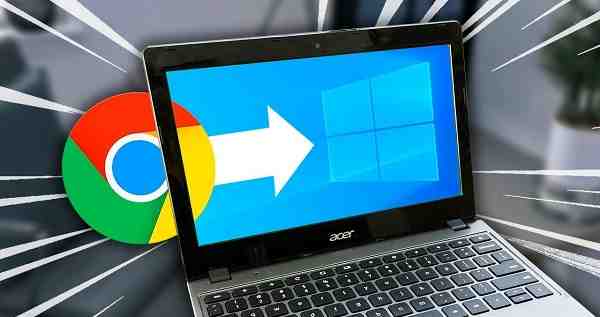
Chromebooks are known for their simplicity, speed, and security. They run on ChromeOS, an operating system developed by Google that is designed primarily for web-based tasks. However, some users may want to install Windows on a Chromebook to access software that is only available on Microsoft’s operating system.
Installing Windows on a Chromebook is possible on certain models, but it requires technical knowledge and may not be supported by the manufacturer. This guide explains the process, requirements, and important considerations before you begin.
Can You Install Windows on Any Chromebook?
No. Not all Chromebooks support Windows installation.
Before proceeding, you should verify:
- Your Chromebook uses an Intel processor.
- Windows drivers are available for your model.
- The device has sufficient storage space.
- The Chromebook firmware can be modified.
Many newer Chromebooks have hardware limitations that may prevent Windows from running properly.
Things to Know Before Installing Windows
Installing Windows on a Chromebook is not an official process and comes with certain risks:
- ChromeOS will be removed.
- Your data may be erased.
- The device warranty could be affected.
- Some hardware features may not work correctly.
- Recovery can be difficult if problems occur.
Always back up important files before making any changes.
Requirements for Installing Windows
You will typically need:
- A compatible Chromebook
- A USB flash drive with at least 16GB storage
- A Windows installation ISO file
- A second computer for preparing installation media
- Stable internet access
- Windows drivers for your Chromebook model
Having all requirements ready beforehand will make the process smoother.
Step 1: Back Up Your Data
The installation process usually requires wiping the Chromebook’s internal storage.
Before proceeding:
- Save important files to cloud storage.
- Transfer personal documents to an external drive.
- Export browser bookmarks if necessary.
- Verify that all essential data has been backed up.
Once Windows installation begins, existing ChromeOS data may be permanently deleted.
Step 2: Enable Developer Mode
Developer Mode provides access to advanced Chromebook settings.
To enable it:
- Turn off the Chromebook.
- Press the Recovery Mode key combination for your model.
- Enter Recovery Mode.
- Follow the prompts to enable Developer Mode.
- Wait for the Chromebook to reset.
This process can take several minutes.
Step 3: Modify Chromebook Firmware
Most Chromebooks require firmware modifications before Windows can boot properly.
The firmware replacement process generally involves:
- Accessing the Chromebook terminal.
- Running firmware utility scripts.
- Installing compatible BIOS firmware.
This step varies significantly depending on the Chromebook model.
Because incorrect firmware installation can render a device unusable, carefully follow instructions specific to your Chromebook.
Step 4: Create a Windows Installation USB
Using another computer:
- Download the Windows ISO file from the official Microsoft website.
- Insert a USB flash drive.
- Use a bootable USB creation tool.
- Select the Windows ISO.
- Create the installation media.
After completion, safely remove the USB drive.
Step 5: Boot from the USB Drive
Next, insert the Windows installation USB into the Chromebook.
Then:
- Restart the Chromebook.
- Access the boot menu.
- Select the USB drive as the boot device.
- Wait for the Windows setup screen to appear.
If the setup screen loads successfully, you can begin the installation process.
Step 6: Install Windows
Once the installer launches:
- Select your preferred language and region.
- Click Install Now.
- Enter a Windows product key if required.
- Choose the appropriate Windows edition.
- Accept the license agreement.
- Select Custom Installation.
- Delete existing partitions if replacing ChromeOS completely.
- Choose the installation destination.
Windows will begin copying files and configuring the system.
The Chromebook may restart several times during installation.
Step 7: Install Drivers
After Windows is installed, some hardware components may not work immediately.
You may need to install drivers for:
- Touchpad
- Keyboard
- Wi-Fi adapter
- Audio system
- Bluetooth
- Graphics hardware
Without proper drivers, some Chromebook features may remain unavailable.
Common Problems During Installation
1. Windows Does Not Detect Storage
Some Chromebook storage controllers require special drivers before Windows can access the internal drive.
2. Wi-Fi Is Not Working
Many Chromebook wireless adapters require custom Windows drivers.
3. Touchpad Stops Responding
Installing the correct touchpad driver usually resolves this issue.
4. Poor Performance
Chromebooks often have limited hardware resources. Running Windows on low-end models may result in slower performance compared to ChromeOS.
Alternative Options to Consider
Instead of replacing ChromeOS entirely, you may consider:
- Using web-based Windows alternatives
- Installing Linux alongside ChromeOS
- Using remote desktop software
- Running Windows applications through compatibility tools
These options are often easier and less risky than a full Windows installation.
Is Installing Windows on a Chromebook Worth It?
The answer depends on your needs.
Windows installation may be worthwhile if:
- You need specific Windows-only applications.
- Your Chromebook hardware is compatible.
- You are comfortable with advanced system modifications.
However, if your primary activities involve browsing, streaming, office work, and cloud applications, ChromeOS is usually the better choice because it is optimized for Chromebook hardware.
Conclusion
Installing Windows on a Chromebook is possible on certain compatible models, but it requires careful preparation and technical expertise. The process involves enabling Developer Mode, modifying firmware, creating a bootable Windows USB, installing the operating system, and configuring drivers. While Windows can expand software compatibility, it may also introduce performance issues and hardware limitations. Before proceeding, ensure your Chromebook supports Windows and back up all important data to avoid unexpected problems.
FAQs
Q: Can every Chromebook run Windows?
A: No. Only certain Chromebook models with compatible hardware and available drivers can run Windows successfully.
Q: Will installing Windows remove ChromeOS?
A: Yes. In most cases, installing Windows replaces ChromeOS completely unless you set up a dual-boot configuration.
Q: Do I need a Windows license?
A: Yes. A valid Windows license is generally required for full activation and access to all features.
Q: Can I return to ChromeOS later?
A: Yes, but you may need Chromebook recovery media and additional setup steps to reinstall ChromeOS.
Q: Is installing Windows on a Chromebook safe?
A: It can be safe when performed correctly, but there is always a risk of software issues, driver problems, or device malfunction if the process is not followed properly.